
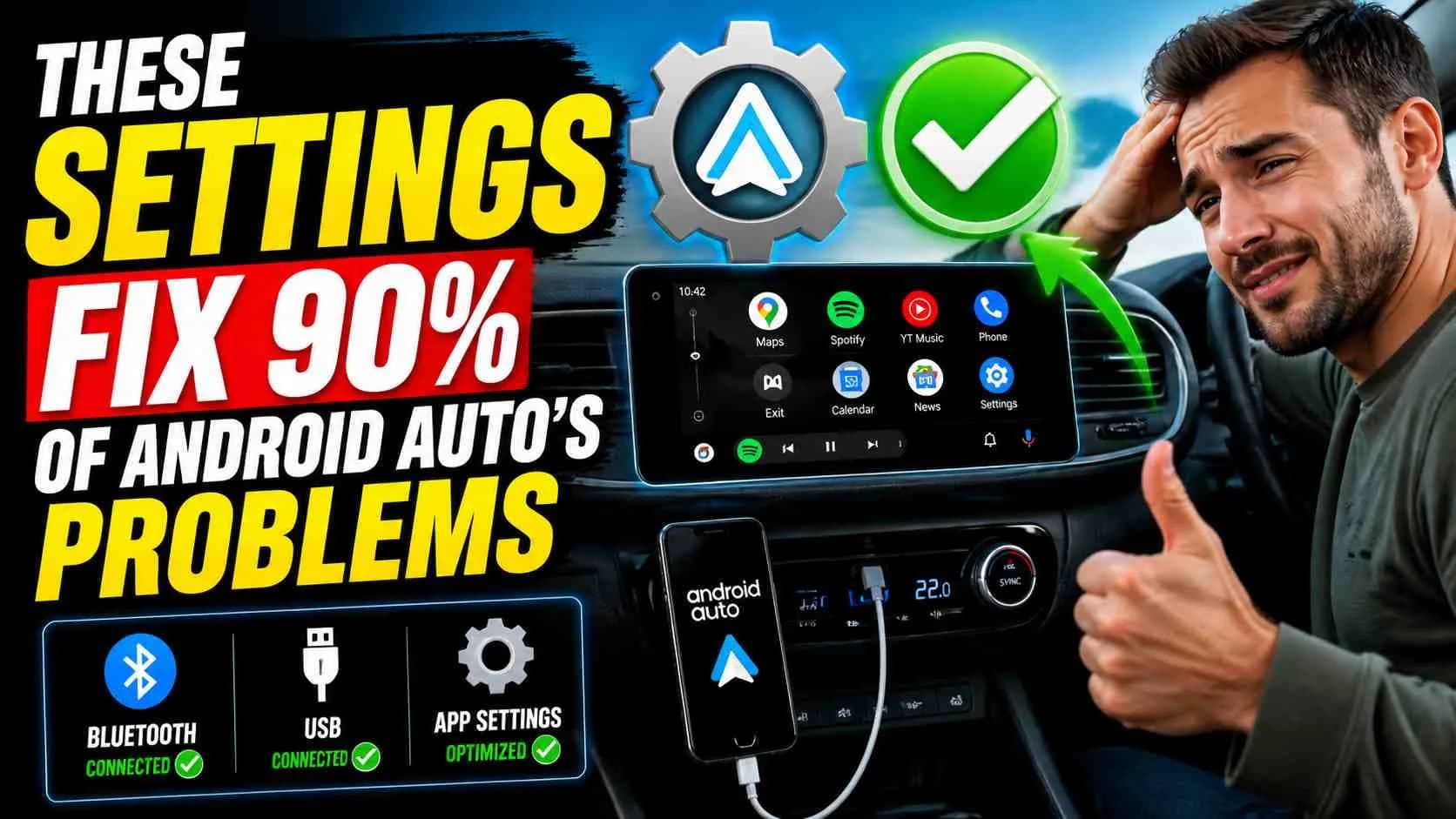
Ever plugged your phone into your car only to see Android Auto freeze, disconnect, or refuse to launch? That frustration is more common than most drivers admit, and in many cases, the issue is not the car or the phone, but a few overlooked settings.
Why Android Auto Breaks More Often Than Expected
Android Auto depends on a mix of permissions, connectivity settings, and background processes. If even one layer misbehaves, the system can lag or fail entirely. Users often assume hardware fault, but software misconfiguration is usually the real cause.
In many cases, fixing a few core settings restores smooth performance without needing technical support or expensive repairs.
The Settings That Solve Most Problems
Most Android Auto issues come from battery optimization, USB debugging conflicts, outdated apps, or restricted background data. Adjusting these areas can instantly improve stability and connection reliability.
From experience, one common mistake people make is leaving battery saver mode enabled while using Android Auto. This limits background activity and interrupts communication between the phone and the car system.
Key Fixes You Should Apply First
Before assuming something is broken, these settings should always be checked. They solve the majority of Android Auto failures across different devices and car models.
| Setting | Why It Matters |
|---|---|
| Disable Battery Optimization | Prevents Android Auto from being shut down in background |
| Enable USB Debugging (if required) | Improves connection stability in some devices |
| Allow Background Data | Keeps navigation and music apps running smoothly |
| Update Android Auto App | Fixes bugs and improves compatibility |
Connection Problems Often Come From Simple Causes
A loose or low-quality USB cable is one of the most overlooked issues. Android Auto is highly sensitive to cable quality, and even a slightly damaged wire can cause repeated disconnections.
Wireless Android Auto users face different challenges, especially Wi-Fi interference or outdated Bluetooth settings. Restarting both phone and car system often clears temporary glitches.
Think of it like a water pipe system. Even if the main supply is strong, a small blockage in one section can reduce flow across the entire system.
Advanced Settings That Improve Stability
Once basic fixes are done, deeper settings can further enhance performance. These include resetting app preferences, clearing cache, and ensuring the car system firmware is up to date.
Users who frequently switch between multiple devices in the same car should also reset Bluetooth pairings to avoid conflicts.
Closing Thought
Android Auto is designed to simplify driving, but small software restrictions can easily disrupt its performance. Most issues are not permanent faults but configuration problems that can be fixed within minutes. As cars become more connected, understanding these settings will become even more important for everyday users.
Quick Facts Box
- Most Android Auto issues are caused by settings, not hardware
- Battery optimization is a leading cause of disconnections
- USB cable quality directly affects stability
- Updates often fix hidden compatibility bugs
Article Details
Category: Auto
Published:
Author: Muhammad Sheikh
More Stories